
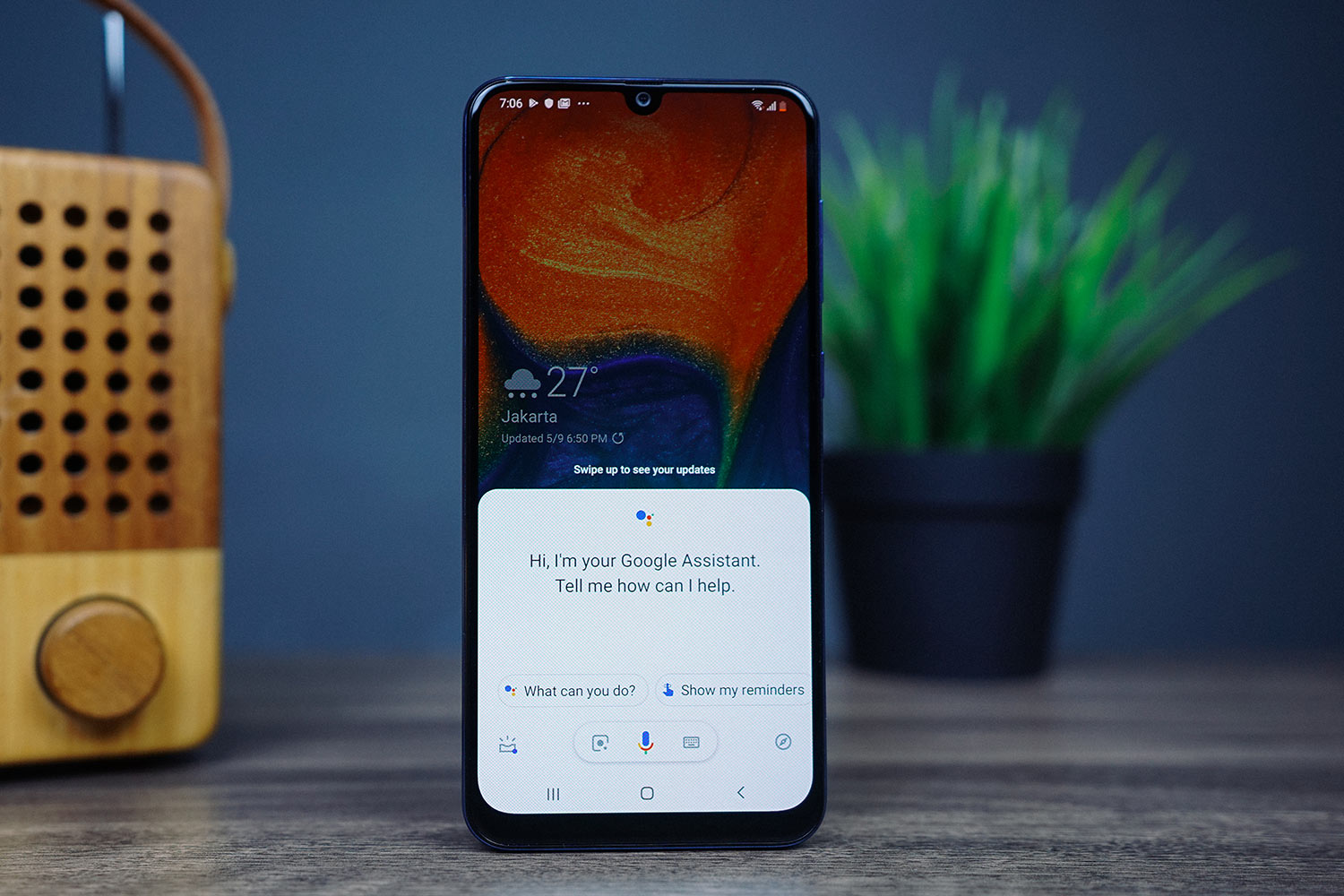
The Ultimate Guide to Music Services on Google Assistant and Google Nest Speakers
The modern smart home is no longer just about lights, thermostats, and security cameras; it is about the soundtrack of your life. At the center of this sonic revolution sits the Google Assistant, embedded in a myriad of devices from the tiny Google Nest Mini to the commanding Google Nest Audio and the visual Google Nest Hub.
However, one of the most common sources of confusion for users—and a frequent frustration—is the complex web of music service compatibility. Why can you ask for a specific song on one service but only get a radio station on another? Why does your speaker refuse to play your Spotify playlist unless you pick up your phone?
In this comprehensive guide, we will dive deep into the ecosystem of streaming music on Google Assistant and Google Nest speakers. We will break down which services are supported, the critical differences between free and premium tiers, how to set them up, and how to troubleshoot the inevitable hiccups.

Introduction: The Convergence of Voice and Audio
The concept of the “smart speaker” has evolved rapidly. Initially, these devices were novelties—used for weather forecasting and kitchen timers. But as audio quality improved (moving from the tenuous Google Home to the bass-rich Google Nest Audio), they became viable replacements for traditional stereos.
Google Assistant acts as the universal translator for these speakers. It doesn’t host the music itself; it acts as a gateway, fetching commands and handing them off to the specific music app you have linked. This is where the complexity lies. Unlike a Bluetooth speaker, which simply mirrors whatever is on your phone, a smart speaker has an “understanding” of your accounts, preferences, and subscriptions.
To get the most out of your Google Nest speaker, you must understand the “Gatekeepers” of this ecosystem: the subscription models and the API limitations.
The “Big Three”: Deep Dives into Major Services
While Google Assistant supports a long tail of niche and regional providers, the vast majority of users will interact with the “Big Three”: YouTube Music, Spotify, and Apple Music.
- YouTube Music (The Native Choice)
Once upon a time, Google Play Music was the default. Today, that torch has been passed to YouTube Music. As Google’s proprietary service, it enjoys the deepest integration with Google Assistant and Nest hardware.
- The Free Tier Advantage: This is YouTube Music’s ace in the hole. Unlike Spotify or Apple Music, you can use YouTube Music on Google Nest speakers for free (in select regions, including the US, Canada, and parts of Europe).
- The Catch: You cannot request specific songs or albums. You can only request “stations” based on an artist, genre, or mood. Expect ads and no skip functionality.
- The Premium Experience: If you subscribe to YouTube Premium or YouTube Music Premium, you unlock on-demand requests. “Hey Google, play ‘As It Was’ by Harry Styles” will work instantly.
- Video Content: Because YouTube is a video platform, your Nest Hub (smart display) can play the music video alongside the audio. On audio-only speakers, it just plays the audio track.
- Unique Features: YouTube Music has excellent algorithmic suggestions. Asking for “Music for focusing” often yields surprisingly good results because it utilizes data from the massive video ecosystem, not just the audio one.
- Spotify (The Market Leader)
Spotify is the titan of the industry, and its partnership with Google is robust. However, users often find the implementation restrictive compared to YouTube Music.
- The Premium Requirement: This is the dealbreaker for many. Spotify requires a Premium subscription (usually $9.99/month) to work with Google Assistant. If you have a free Spotify account, the Google Nest speaker will refuse to play specific tracks. You might get a shuffled playlist, or the speaker might say, “I can’t do that here.”
- The “Link” Integration: Linking your Spotify account allows Google Assistant to see your “Liked Songs,” “Daily Mixes,” and private playlists.
- Spotify Connect: This is a workaround that isn’t strictly voice-activated but is useful. If you are playing music on your phone via Spotify, you can tap the “Devices Available” icon in the app and select your Google Nest speaker. This bypasses the Assistant’s voice limitations and works with free accounts (subject to Spotify’s mobile limitations).
- Voice Match: Google supports multi-user recognition for Spotify. If you and your partner have separate Spotify accounts, the Nest speaker can distinguish your voices and serve up your respective libraries.
- Apple Music (The Ecosystem Rival)
It might seem surprising that a Google speaker works so well with Apple Music, but the integration is surprisingly seamless.
- The Subscription Requirement: Like Spotify, Apple Music requires a paid subscription (Individual, Family, or Student) for voice control.
- The Quality: Apple Music recently launched Apple Music Classical. This is a distinct app, but currently, Google Assistant integrates with the standard Apple Music library. If you ask for a classical piece, Apple Music’s standard library usually handles it well.
- Integration Nuances: The integration is solid, but it lacks the “native” feel of YouTube Music. For example, asking for “The Song That Never Ends” might work better on YouTube (where it’s a meme) than on Apple Music if the metadata isn’t exact.
- Voice Match: Apple Music is fully integrated with Voice Match, making it an excellent choice for households where some members have iPhones and others have Androids.
The “Niche” and Specialized Services
Beyond the big three, Google Assistant supports a variety of services that cater to specific audiophiles, demographics, and use cases.
Deezer: The International Giant
Deezer is a major player globally but is often overlooked in the US. It offers a feature called “Flow,” which creates an infinite soundtrack based on your tastes.
- Google Assistant Support: Excellent. You can set Deezer as your default provider.
- Free Tier: Unlike Spotify, Deezer does have a free tier integration via Google Assistant, though it is limited to radio stations, not specific on-demand tracks.
- High Fidelity: Deezer HiFi is popular among audiophiles. If you own a Google Nest Audio, which supports high-quality streaming, Deezer is a great choice to test the speaker’s range.
Pandora: The Radio Pioneer
Pandora existed before “streaming” was a common term. It is built on the Music Genome Project—a complex taxonomy of musical traits.
- Google Assistant Support: Strong integration with “Stations.”
- Best Use Case: Pandora is best for passive listening. Commands like “Hey Google, play a station for working out” are where Pandora shines. It struggles more with “Play this specific album” unless you are a Premium subscriber.
Tidal: The Audiophile’s Choice
Tidal is known for its artist-owned model and lossless audio quality (HiFi and Master).
- Google Assistant Support: Supported, but requires a Premium subscription.
- Quality vs. The Speaker: Here is a crucial technical note: While Tidal streams in Master quality, Google Nest speakers (Mini, Audio, Hub) do not support lossless codecs over Wi-Fi or Bluetooth currently. They downsample the audio. Therefore, paying for Tidal Master quality to play on a Nest Mini is arguably a waste of money, though you might notice the mastering quality on high-end tracks via the Nest Hub.
SoundCloud: The Underground
SoundCloud is the home of remixes, underground rap, and DJ sets.
- Google Assistant Support: Supported via SoundCloud Go+ (Paid).
- The Vibe: This is the service you want if you are looking for a “deep cut” or a remix that isn’t on the major platforms. It is the go-to for younger demographics looking for club edits.
TuneIn and iHeartRadio: The Traditional Radio
For many, “smart speakers” are simply replacements for AM/FM radios.
- TuneIn: This is arguably the most important service for global news. It aggregates radio stations from all over the world. “Hey Google, play BBC Radio 4” works because of TuneIn.
- iHeartRadio: The standard for US terrestrial radio.
Free vs. Premium: The “Voice Command” Paradox
One of the biggest pain points for new users is the discrepancy between what a service offers on a phone versus what it offers on a smart speaker. This table clarifies the permissions needed for different actions.
Table 1: Service Comparison and Voice Control Capabilities
| Music Service | Free Voice Control (Google Nest) | Premium Required? | What “Free” Users Can Do |
| YouTube Music | Yes (Limited) | No (for radio) | Play radio stations, genre stations, and podcasts (with ads). Cannot play specific songs on demand. |
| Spotify | No | Yes | Linking the account is possible, but voice commands for on-demand playback are blocked. Users must use the app to cast. |
| Apple Music | No | Yes | No playback capability without a subscription. |
| Deezer | Yes (Limited) | No (for radio) | Similar to YouTube Music—stations and mood mixes only. |
| Pandora | Yes (Partial) | No (for radio) | Stations are accessible. On-demand playback requires Premium. |
| Tidal | No | Yes | No playback capability. |
| SoundCloud | No | Yes (Go+) | No playback capability. |
The “Paradox”: You might sit on your couch and say, “Hey Google, play ‘Bohemian Rhapsody’ on Spotify.” The speaker replies: “I can’t do that here. To play music on Spotify, you need a premium account.” You then say, “Hey Google, play ‘Bohemian Rhapsody’ on YouTube Music.” The speaker immediately starts playing the song (maybe with an ad).
This isn’t Google being unfair to Spotify; it is the licensing agreement Spotify has with record labels. They restrict “passive” streaming (background listening) to paid subscribers to prevent users from circumventing their mobile app ads.
How to Set Up and Link Your Services
Getting your music playing correctly requires a setup process within the Google Home app. Here is the step-by-step guide.
Step 1: The Google Home App
Everything starts here. This is the command center for your Nest speakers.
- Open the Google Home app on your phone or tablet.
- Tap the Settings icon (usually in the top right, looks like a gear).
- Scroll down to the “Features” section and look for “Music” (sometimes labeled “Video” or “Music and Audio”).
Step 2: Linking Services
In the “Music” section, you will see a list of supported services.
- Tap on the “+” sign next to the service you want (e.g., Spotify).
- You will be redirected to that service’s login page.
- Enter your credentials and authorize Google to access your account data.
- Note: This gives Google permission to see your email address, your country, and your subscription status. It does not give Google your password.
Step 3: Setting the Default Service
You can have multiple services linked, but you must choose one as your “Go-To.”
- In the same “Music” settings menu, look for “No default provider” or a currently set provider (like “YouTube Music”).
- Tap it and change it to your preferred service (e.g., Spotify).
- Why this matters: If you say, “Hey Google, play jazz,” it will play jazz from your default service. If you want to specify a service, you must name it explicitly: “Hey Google, play jazz on Apple Music.”
Step 4: Voice Match
This is the step that makes your Nest speaker truly smart.
- In Google Home Settings, go to Assistant > Voice Match > Add a device.
- Follow the prompts to teach the Assistant your voice.
- Ensure you link your music services after setting up Voice Match, or the system might get confused about who to bill or which library to pull from.
Troubleshooting: When the Music Doesn’t Play
We have all been there. You ask for a song, and the Assistant replies, “I’m sorry, something went wrong,” or worse, it starts playing a song you hate.
Problem 1: “I can’t find your Spotify account.”
The Cause: This usually happens if you have multiple Google accounts (e.g., a personal one and a work one) and the speaker is trying to use the account that doesn’t have Spotify linked. The Fix:
- Check which account the speaker is associated with in the Google Home app (tap the speaker icon, top right gear, “Google Account”).
- Unlink and relink Spotify within the specific Google account you are using.
Problem 2: The wrong song plays (Hallucinations).
The Cause: AI voice recognition is imperfect. You asked for “The Strokes,” but the Assistant heard “The Jokes.” Or you asked for “Kids” by MGMT, and it played a “Kids” playlist from Spotify because your library is set to shuffle. The Fix: Be specific. Use the full command: “Hey Google, play the song ‘Kids’ by M-G-M-T on Spotify.” Additionally, check your “Autoplay” settings in the music apps. If Spotify’s Autoplay is on, after your requested song finishes, the speaker will play whatever Spotify suggests next, which might not be your style.
Problem 3: Bluetooth Disconnects.
The Cause: Sometimes you just want to play audio from an app that isn’t supported (like Audible or a local podcast player). The Fix:
- Say, “Hey Google, pair Bluetooth.”
- Go to your phone’s Bluetooth settings and tap “Google Nest Mini.”
- If this is unstable, you might need to “Forget” the pairing on both devices and start fresh.
The Future of Audio on Google Assistant
